Embed Your Calendar
Ever wanted to show your calendar to your students without requiring them to login?
You can link your Duet calendar with a Google Calendar account and embed Google's Calendar to display your class schedule on your website.
To link your Duet calendar with a Google Calendar account. Follow these steps:
-
While logged in to your Duet account, click Settings then click the Calendar tab.
-
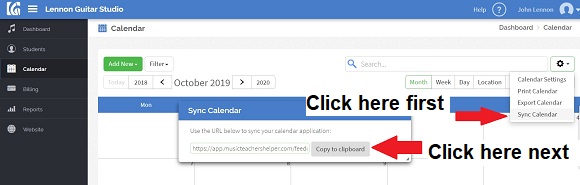
Copy the Calendar Feed URL under Calendar Sync.
-
Login to your Google Calendar Account.
-
In the calendar list on the left, click the down-arrow button next to Other calendars and select Add by URL.
-
Paste your Duet Feed URL in the field provided and click Add Calendar and make sure the Make the calendar publicly accessible? option is checked. The calendar will appear in the Other Calendars section of the calendar list to the left.
Now that you have your calendar linked with a Google Calendar account, follow these steps to get the embed code:
-
In the calendar list on the left on your Google Calendar account, click the down-arrow next to your Duet calendar and select Calendar settings. By default, your Duet calendar will be named Duet Calendar.
-
If you want to customize the calendar, click the Customize the color, size, and other options link.
-
When you're done, copy the iframe code displayed in the Embed This Calendar section. Paste this code into a page in your Duet studio website to embed the calendar.
It may take up to 24 hours before your Duet events are indexed by Google and start appearing in your Google Calendar. For additional help, visit Google's article about embedding the calendar on a website.
Take a look how it looks on my site.
Back to Tips & Tricks